If your first Xemu launch ends with missing BIOS warnings, black screens, or endless loops, you’re not alone. I’ve broken Xemu more times than I’d like to admit just by placing files in the wrong folder. This guide focuses purely on Xemu BIOS setup without errors, using real-world fixes instead of vague instructions.
Why does Xemu fail to detect BIOS files?
Most BIOS errors come from folder structure mistakes, not bad files.
Xemu doesn’t scan your whole PC. It looks in one exact directory, and if the file name is even slightly off, it silently fails. I once spent 40 minutes troubleshooting what turned out to be an extra space in a filename.
If you’re brand new, start with **👉 Basic emulator setup guide before diving deeper. It clears up path confusion early.
Where should BIOS files actually be placed?
Xemu expects BIOS and MCPX files inside its system folder, not next to your game ISOs.
On Windows, this is usually inside the Xemu install directory under a “system” subfolder. On Linux and Steam Deck, the path changes slightly, which catches people off guard.
I’ve found it helps to restart Xemu completely after adding files. Hot reloading rarely works.
What BIOS versions work best with Xemu?
Not all Xbox BIOS dumps behave the same.
Some older versions boot but crash during loading screens or freeze after logos. I’ve had the most stable results with retail BIOS dumps over debug builds, especially for multi-disc titles.
If you’re seeing launch failures after placement looks correct, check **👉 Fixing black screen boot issues — BIOS mismatches are a hidden cause.
How do you confirm BIOS is working before loading games?
Don’t jump straight into ISOs.
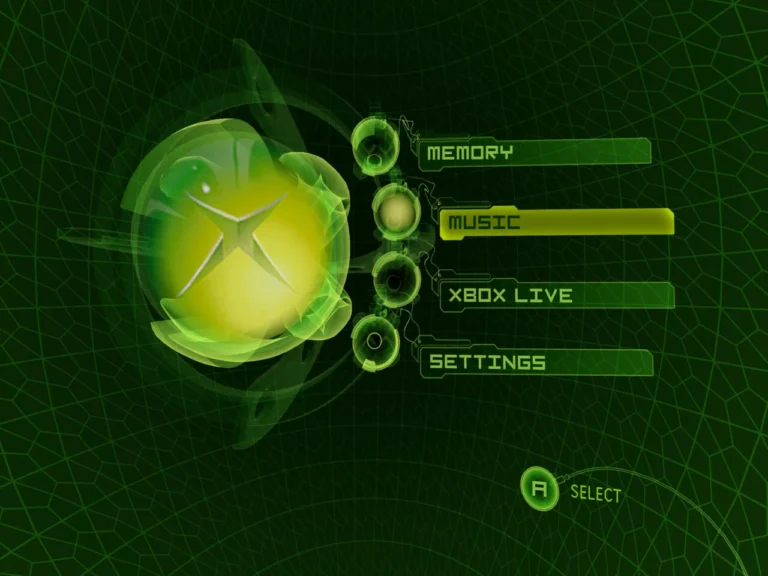
First, open Xemu and check whether the dashboard loads without warnings. If you reach the Xbox menu, your BIOS is valid and readable. If not, the error message is your friend — don’t ignore it.
Once stable, you can move into performance tuning using **👉 Advanced performance optimization tips to avoid crashes later.
Common mistakes I still see users make
People unzip BIOS archives but leave files nested inside extra folders.
Others rename files to “look clean” and break detection entirely. Xemu is picky, and predictable naming beats neat naming every time.
FAQs
Do I need both BIOS and MCPX files?
Yes. Missing either will trigger boot errors or dashboard freezes.
Can I reuse BIOS from other Xbox emulators?
Sometimes, but not always. Some dumps boot elsewhere but fail in Xemu.
Why does Xemu still say BIOS missing after placement?
Usually wrong directory path or file extension mismatch, not file corruption.
Does BIOS region matter?
Rarely, but mismatched region BIOS can cause odd dashboard behavior in some titles.
Final thoughts
Xemu BIOS errors feel intimidating, but they’re almost always simple path or file mistakes. I’ve found that slowing down, checking folder structure twice, and testing dashboard boot before loading games solves 90% of cases.
Once BIOS is stable, everything else becomes dramatically easier.