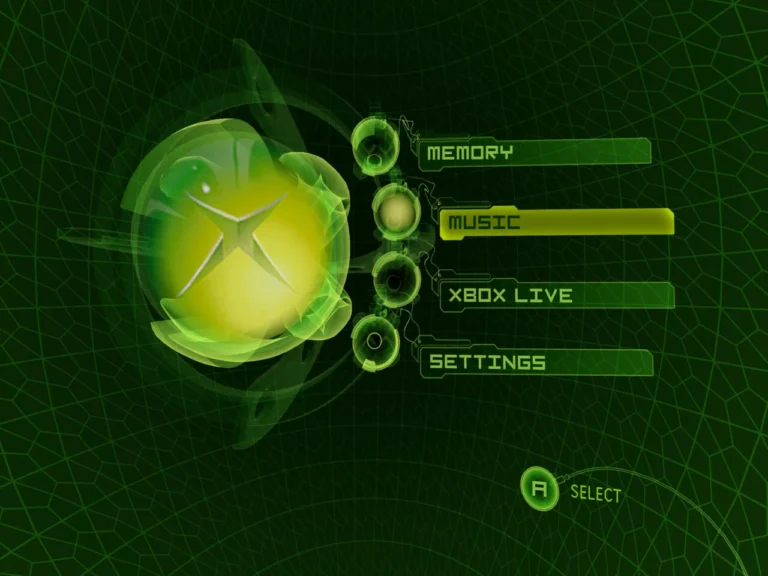
Getting Xemu running smoothly on your PC can feel intimidating at first. Many users struggle with lag, crashes, or suboptimal graphics because they overlook key launch settings. In my experience, tweaking a few parameters right after installation dramatically improves performance and reduces headaches down the line. This guide walks you through the first launch settings that really make a difference.
Why Do Initial Settings Matter in Xemu?
When I first tried Xemu, I ignored the configuration options and ended up with stuttering gameplay. The default settings are safe, but they don’t optimize for your hardware. Choosing the right renderer, resolution, and controller mapping at launch prevents common issues like slow frame rates or audio glitches. For beginners, this step is just as critical as understanding the basic emulator setup for a smooth start.
What Renderer and Graphics Settings Should You Use?
The renderer determines how the emulator interacts with your GPU. On my mid-range laptop, switching from the default Direct3D11 to Vulkan reduced stutter instantly. Keep resolution close to your monitor’s native setting to avoid unnecessary scaling, which often kills performance. Also, consider disabling VSync if input lag feels noticeable; most games run fine without it in Xemu. For advanced users, adjusting shader caching can further stabilize frame rates, a tip I learned after experimenting with performance optimization tricks.
How to Configure Controllers Without Hassle
Controller mapping can make or break the experience. Xemu supports most XInput controllers natively, but manually checking button assignments avoids in-game confusion. I once spent an hour troubleshooting why certain buttons didn’t register—turns out, skipping this step at first launch was the culprit. If you’re new, following a structured beginner guide to controller setup saves time and frustration.
Common Pitfalls During First Launch
Even with careful setup, some issues are tricky. Crashes at startup often come from incompatible GPU drivers or missing DLLs. I learned this the hard way and had to reinstall dependencies manually. Audio distortions can also appear if the sample rate isn’t synced with your system defaults. Fixing these early prevents headaches in long sessions. For deeper troubleshooting, reviewing Xemu error fixes for similar crash patterns is invaluable.
FAQs About Xemu Initial Settings
Do I need to tweak every setting at first launch? Not always. Start with the renderer, resolution, and controller mappings. Other options can be adjusted as you get comfortable.
Will these settings work on older PCs? Mostly yes, but reducing resolution and disabling advanced shaders may be necessary for stable performance.
Can I change settings later without losing saves? Absolutely. Xemu keeps save files separate, so experimenting with graphics or audio tweaks is safe.
Why does Vulkan sometimes perform worse than Direct3D11? Certain older GPUs or drivers may not fully support Vulkan. Switching back is fine and sometimes preferable.
Conclusion
Setting up Xemu for the first time doesn’t have to be intimidating. From choosing the right renderer to configuring controllers properly, a few minutes of attention pays off with smoother gameplay and fewer errors. Remember, I stumbled through crashes and lag before learning these tweaks—so take these recommendations seriously. By combining these steps with advanced optimization techniques, your Xemu experience can feel almost native, even on mid-tier hardware.