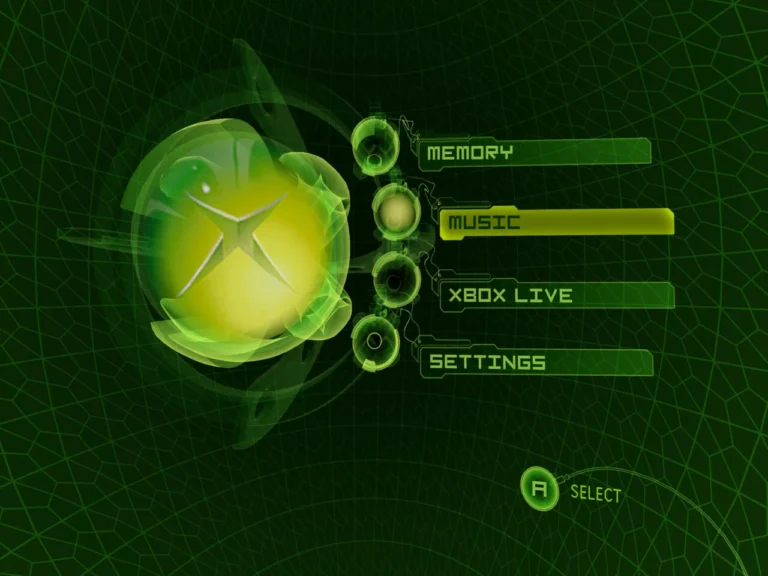
Running Xemu only to hit the “BIOS Not Found” error can be frustrating, especially if you’ve just set up the emulator. From my experience, this error is one of the most common for newcomers, but it’s entirely avoidable. Knowing where your BIOS files should go and how Xemu detects them makes the difference between a crash and smooth gameplay.
Why Does Xemu Say “BIOS Not Found”?
Xemu requires an original Xbox BIOS to emulate hardware accurately. Without it, the emulator has no reference for memory mapping, system calls, or controller input. I’ve seen users accidentally place the BIOS in the wrong folder or rename it incorrectly, causing repeated error messages. Beginners should review a foundational emulator setup guide to ensure proper folder structure.
Quick Steps to Fix the Error
The simplest solution is to verify the BIOS path in Xemu’s settings. I often recommend keeping your BIOS in a dedicated folder named clearly, like “BIOS,” and pointing Xemu directly to it. Sometimes the issue stems from permissions—running Xemu as administrator resolved the error for me on Windows. For Mac or Linux, double-check file permissions.
Common Mistakes That Cause BIOS Detection Issues
Renaming files incorrectly, mixing regional BIOS versions, or using corrupted BIOS dumps can all trigger this error. I once spent hours troubleshooting only to realize my NTSC BIOS was in a PAL folder. Consulting a common emulator errors and fixes resource saves a lot of trial and error. Another tip: avoid copying BIOS from sketchy sources; always dump from your console.
Advanced Tips for Reliable BIOS Loading
For advanced users, creating a small batch of verified BIOS versions helps test compatibility across games. Xemu allows you to switch between BIOS files easily, which is helpful when dealing with regional or revision differences. Combining this approach with advanced optimization techniques ensures faster boot times and fewer crashes during emulation sessions.
FAQs About Xemu BIOS Errors
Can I download a BIOS online? Only dump your own Xbox BIOS. Downloading BIOS files from the internet is illegal and may carry malware.
Why does the BIOS error happen after updating Xemu? Updates can reset paths or overwrite settings; always recheck the BIOS location.
Do regional BIOS files matter? Yes, using the wrong region can prevent games from loading or cause system errors.
Can corrupt BIOS files trigger this error? Absolutely, corrupted dumps often fail detection even if the file path is correct.
Is there a quick test to confirm BIOS functionality? Loading a small homebrew demo usually verifies that Xemu recognizes the BIOS.
Conclusion
The “BIOS Not Found” error in Xemu is annoying but easy to fix once you understand file paths, naming, and permissions. From personal experience, combining a foundational emulator setup guide, knowledge of common emulator errors and fixes, and applying advanced optimization techniques eliminates this error and keeps games running smoothly. With the right approach, you can focus on gameplay instead of troubleshooting.