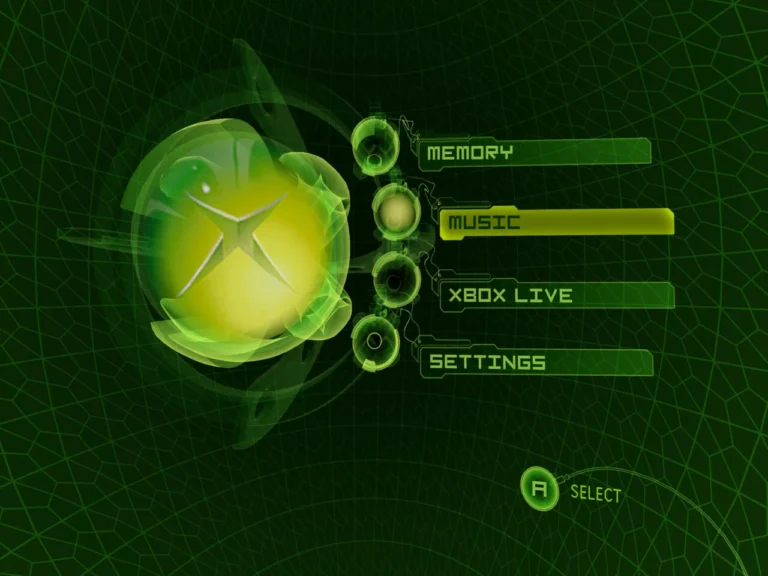
Verifying your Xbox BIOS files before using Xemu is crucial. I’ve lost hours testing games only to realize a corrupt or mismatched BIOS was the culprit. Ensuring the integrity of your BIOS not only prevents crashes but also guarantees accurate emulation and smoother gameplay. For newcomers, this step is often overlooked, but it’s simple once you know the process.
Why Verification Matters
Xemu relies on the BIOS to mimic original Xbox hardware. Using an incomplete or corrupted BIOS can lead to errors like missing system files, graphical glitches, or failed boot sequences. I’ve personally seen users try multiple setups before realizing a bad dump caused all their problems. Checking your BIOS avoids repeated troubleshooting sessions and protects your emulator configuration.
How to Confirm Your BIOS Files Are Correct
Start by comparing file sizes and hashes against a verified source. While official sources aren’t publicly available, you can validate your BIOS dump using a foundational guide for dumping Xbox BIOS. Tools like checksums (MD5 or SHA1) help ensure files weren’t altered during extraction. Another tip I learned the hard way: keep separate backups for each console region to prevent mismatches.
Common Mistakes During Verification
The most frequent errors are misnamed files, using the wrong regional BIOS, or mixing versions. I once tried using a PAL BIOS for an NTSC game, and Xemu failed to detect it entirely. Consulting a common emulator errors and fixes guide can save you from these pitfalls. Always double-check the folder structure and naming conventions before launching Xemu.
Advanced Tips for Reliable BIOS Management
For advanced users, maintaining a library of verified BIOS files helps test different Xemu versions or experimental builds. Label each BIOS clearly with region and revision, and use advanced optimization techniques to streamline BIOS detection. This not only speeds up emulator boot times but also reduces conflicts when switching between games or setups.
FAQs About Xemu BIOS Verification
How do I know my BIOS is corrupted? If Xemu fails to boot or shows unusual errors, your BIOS may be damaged or incomplete. Checking the hash values against a verified dump helps confirm integrity.
Can I use any Xbox BIOS with Xemu? No, you need a dump from your own console, and region matters. Mixing PAL and NTSC BIOS can prevent games from launching.
Do BIOS verification tools exist? Yes, checksum utilities and emulation forums provide guidance on validating file integrity.
Will a verified BIOS prevent all errors? Mostly, but Xemu still depends on correct emulator settings and compatible games, so it’s not a complete fix by itself.
Is verification needed for updates? Always re-verify after updating Xemu or switching BIOS files to ensure compatibility.
Conclusion
Verifying Xbox BIOS files for Xemu is a small step that prevents major headaches. Combining a foundational guide for dumping Xbox BIOS, awareness of common emulator errors and fixes, and applying advanced optimization techniques ensures smooth, reliable gameplay. I’ve found that this proactive approach saves hours of troubleshooting and lets you enjoy your games without constant interruptions.