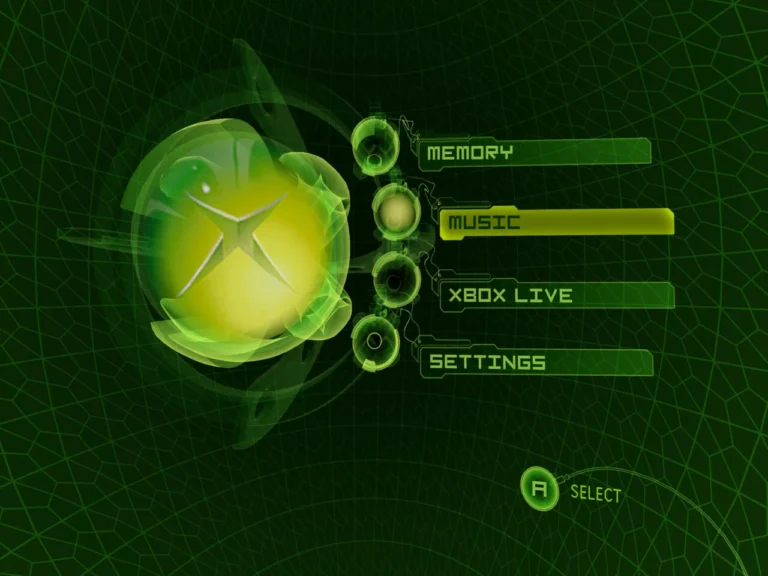
Play original Xbox games on PC but felt overwhelmed by emulator setup guides. My first attempt with Xemu ended in a black screen and zero sound. After a few trial-and-error installs, controller rage moments, and BIOS mistakes, I finally found a setup flow that actually works for non-tech users — and that’s what this guide is.
This post isn’t documentation. It’s the exact steps and mental shortcuts I wish someone had given me before I wasted hours reinstalling things I already did right.
What is Xemu and who is it actually for?
Xemu is a modern emulator for the original Xbox — not Xbox 360, not One, just the classic 2001 console. If you:
- Own Xbox game ISOs
- Want controller support without tweaking 20 menus
- Don’t want command-line nonsense
Then Xemu is the easiest option I’ve tested.
What surprised me most: once it’s set up properly, it’s more stable than some retro emulators. But the first 15 minutes decide whether you enjoy it or uninstall in frustration.
How do you install Xemu without breaking anything?
Here’s the version that worked for me on Windows:
- Download Xemu from the official site
- Extract the folder (don’t install in Program Files — permissions issues)
- Launch once, then close it
That’s it. No installers. No registry changes.
⚠️ Mistake I made: running Xemu before placing the BIOS files. It launches, but nothing works — and you think it’s broken.
If you’ve never dealt with emulators before, reading a general emulator setup guide first really helps. I personally used a simple walkthrough that explained folder structures in plain English — it saved me from messing up directory paths.
What files do you actually need (and where do they go)?
Xemu needs three things:
- Xbox BIOS
- MCPX boot ROM
- Hard disk image
Once you have them, open Xemu → Machine → Settings → System and point each field to its file.
Here’s the part beginners mess up:
- Don’t rename the files
- Don’t move them after linking
- Don’t store them on external drives
If Xemu boots to a black screen or dashboard loop, check your file paths first — not your PC specs.
I had one BIOS that technically “worked” but crashed during loading screens. Replacing it instantly fixed everything.
How do you load games without weird errors?
Xemu loads ISO or XISO formats. Some standard ISOs won’t boot until converted — that tripped me up early.
Once your game is ready:
- Go to
Machine → Load Disc - Select the ISO
- Reset the virtual console
If it freezes on startup, don’t panic. This is usually a bad rip or unsupported format — not your setup.
If games crash mid-load, you might want to skim a troubleshooting post that covers black screen, freeze, and boot-loop fixes — I had to reference one after Halo refused to launch.
Does Xemu work with controllers automatically?
Yes — and this is one of its biggest wins.
Plug in:
- Xbox controller
- PlayStation controller
- Generic USB gamepad
Xemu auto-maps most layouts. But analog triggers sometimes map wrong.
What worked for me:
- Open
Input Settings - Click each button once manually
- Save profile
Took 60 seconds and fixed drifting + inverted triggers.
Keyboard works too, but honestly. Xbox games without analog sticks feel cursed.
What performance settings actually matter for beginners?
Forget advanced shaders and render hacks. You only need to touch two things:
- Resolution scale → set to 2x or 3x
- Vsync → off if you get input lag
Everything else: leave default.
On my mid-range PC, 3x resolution ran smooth with no drops. 4x looked great but caused audio crackle in cutscenes.
If you want to go deeper later, there’s a solid performance optimization guide that dives into GPU tweaks and latency tuning — but it’s overkill for beginners.
Real mistakes I made so you don’t
- Installed BIOS after launching → dashboard loop
- Used compressed ISO → game wouldn’t boot
- Plugged controller after game start → no input
- Stored emulator in protected folder → config not saving
Every one of these felt like “Xemu is broken” — none of them were.
Quick Beginner Setup Checklist
- Extract Xemu to a normal folder
- Add BIOS, ROM, HDD files before launching
- Load uncompressed ISO/XISO format
- Test controller mapping once
- Start with default graphics settings
FAQs (Beginner-Level)
Is Xemu legal to use?
The emulator itself is legal. BIOS files and games must be dumped from hardware you own.
Can Xemu run on low-end PCs?
Yes. Most Xbox games run fine on older GPUs if you keep resolution scaling at 1x or 2x.
Why does my game freeze at the Xbox logo?
Usually a bad BIOS or incompatible ISO format. Try a different dump.
Does Xemu support save states?
No — but it supports real Xbox memory card saving inside games.
Can I use multiple controllers?
Yes. Multiplayer works fine as long as each controller is mapped.