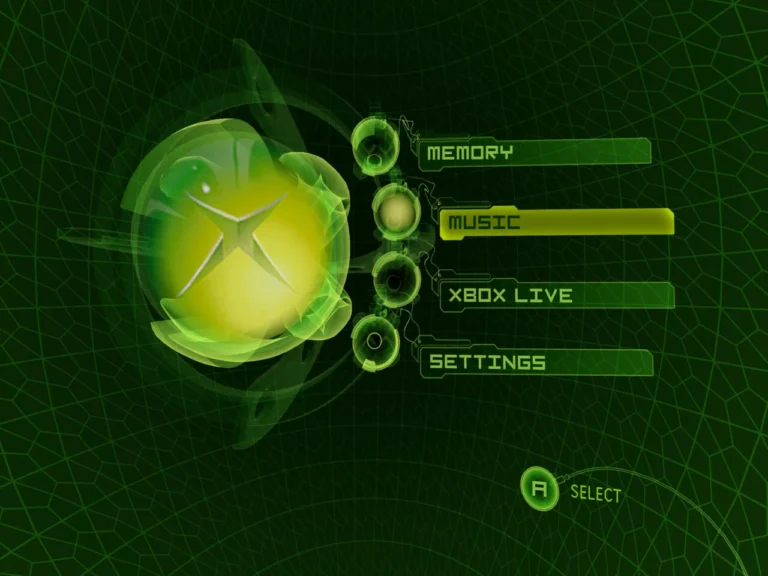
If Xemu launches fine but your Xbox controller does nothing, you’re not alone. I’ve seen this trip up more people than BIOS errors. Learning how to configure Xbox controller in Xemu is less about drivers and more about understanding how Xemu expects input.
Once it’s set up properly, it just works. Until then, it’s frustratingly silent.
Does Xemu support Xbox controllers natively?
Yes, but with caveats. Xemu expects an Xbox-style controller layout, not every modern controller profile. Even official Xbox controllers can behave oddly if the OS or another app hijacks them first.
Before touching controller settings, make sure your emulator basics are correct. If you rushed installation, skim a simple Xemu setup guide to rule out bad defaults that can block input detection entirely.
Where do you configure the controller in Xemu?
Controller setup lives inside Xemu’s input configuration menu, not in-game. This matters because mapping while a game is running sometimes fails to register buttons.
Select the virtual Xbox controller port, then bind each button manually. Auto-mapping looks tempting, but I’ve had it mis-assign triggers more times than I can count.
Wired vs wireless controllers: does it matter?
It does. Wired controllers are detected faster and behave more predictably. Bluetooth adds another translation layer, which can cause delayed or missed inputs during mapping.
If Xemu sees your controller but buttons don’t respond, stop and check why controllers sometimes stop responding. In my case, Steam Input was quietly overriding bindings in the background.
How should triggers and sticks be mapped?
Triggers are the most common mistake. Xemu treats them as analog inputs, so they must be bound as axes, not buttons. If your triggers feel binary or don’t register, this is why.
Analog sticks should be centered carefully. If you notice drift after mapping, it usually means the stick wasn’t centered when you bound it. I’ve had to redo mappings just for that.
Can controller settings improve gameplay feel?
Absolutely. Proper configuration reduces missed inputs and makes games feel closer to real hardware. While mapping won’t fix performance issues, it prevents fake “lag” caused by bad bindings.
Once your controller works correctly, fine-tuning responsiveness using advanced performance tuning tips makes a noticeable difference, especially in shooters and racing games.
FAQs
Why does Xemu detect my controller but ignore inputs?
Another app is likely capturing it first. Steam Input is the usual culprit.
Do third-party controllers work?
Most do, but they often require full manual mapping and trigger axis adjustment.
Should I remap for every game?
No. Xemu uses a global controller profile, which matches most Xbox titles well.
Why do my triggers act like buttons?
They were mapped incorrectly. Rebind them as analog axes.
Final thoughts from real use
Configuring a controller in Xemu isn’t hard, but it’s unforgiving. One wrong binding can make the whole setup feel broken.
Take your time, map manually, and test inputs before launching a game. Once it’s right, you won’t need to touch it again for a long time.