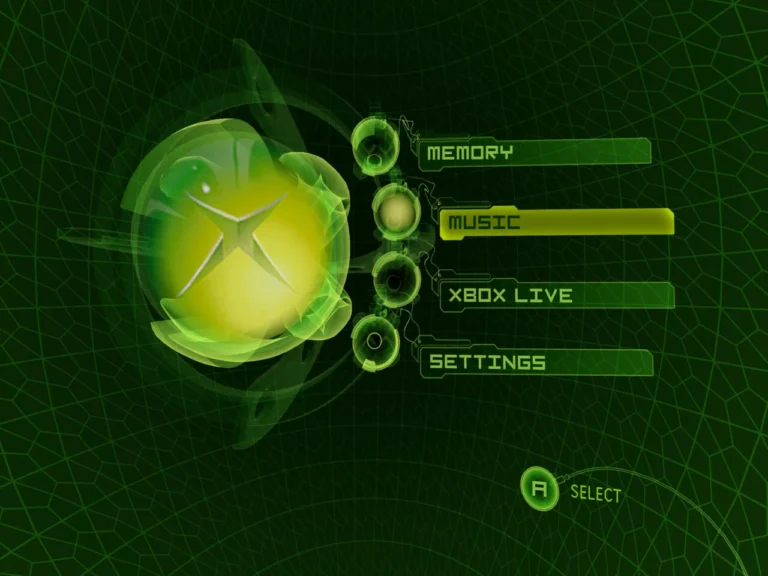
Trying to play Xemu with keyboard and mouse can feel awkward at first. Xemu is built around an original Xbox controller, so keyboard and mouse support is more of a workaround than a native feature. I’ve used it anyway, mostly for shooters and testing, and it can be usable if you set expectations correctly.
This keyboard & mouse setup guide for Xemu emulator focuses on what actually works, what doesn’t, and how to avoid wasting time.
Does Xemu officially support keyboard and mouse?
Not directly. Xemu only exposes virtual Xbox controller ports. Keyboard and mouse input must be mapped to those controller inputs. This means you’re always emulating a controller, not true mouse aim.
Before mapping anything, make sure your emulator itself is working correctly. If something feels broken early, revisit the basic Xemu setup process so you’re not fighting bad defaults or missing permissions.
How do you map keyboard inputs in Xemu?
Keyboard mapping is straightforward but manual. Each key gets bound to a controller button or stick direction. Digital movement works fine for D-pads and face buttons, but analog movement is where it starts to feel limiting.
I usually bind WASD to the left stick and leave the right stick unmapped unless absolutely necessary. Trying to emulate full analog movement with keys often makes games feel jerky.
What about mouse aiming in Xemu?
Mouse input is the weak point. Xemu doesn’t support raw mouse input, so you’re mapping mouse movement to the right analog stick. That introduces acceleration and dead zones you can’t fully remove.
If your mouse doesn’t register at all, stop tweaking and check why mouse or keyboard input isn’t detected first. In my case, another input tool was silently blocking Xemu from seeing the mouse.
Lowering mouse sensitivity at the OS level helps more than adjusting in-game settings. It’s counterintuitive, but it smooths stick emulation.
Can keyboard and mouse feel responsive?
To a degree. Menu navigation and slower-paced games are fine. Fast shooters never feel like PC-native controls, no matter how much tuning you do.
Reducing input delay elsewhere makes a bigger difference than perfect bindings. Once mapped, applying advanced performance tuning tips can noticeably improve how responsive mouse movement feels, even if it’s still stick-based.
When should you avoid keyboard and mouse?
Some games are simply designed around analog triggers and pressure-sensitive inputs. Driving games and titles with gradual acceleration feel awful on a keyboard.
I’ve also noticed occasional input desync after alt-tabbing. Restarting Xemu usually fixes it, but it’s something controller users rarely deal with.
FAQs
Can I use keyboard only without a mouse?
Yes. Keyboard-only works fine for many games, especially RPGs and platformers.
Is mouse aim better than a controller?
No. It’s different, not better. Precision is limited by analog stick emulation.
Do third-party mapping tools help?
Sometimes, but they add complexity and can increase input delay or conflicts.
Will future updates add native mouse support?
Nothing confirmed. Xemu prioritizes hardware accuracy over PC-style controls.
Final thoughts from real use
Keyboard and mouse in Xemu is a compromise, not a replacement for a controller. It works best when you accept its limits and tune for comfort, not perfection.
If you already have a controller, use it. If not, this setup is good enough to play and enjoy most games without feeling completely stuck.